
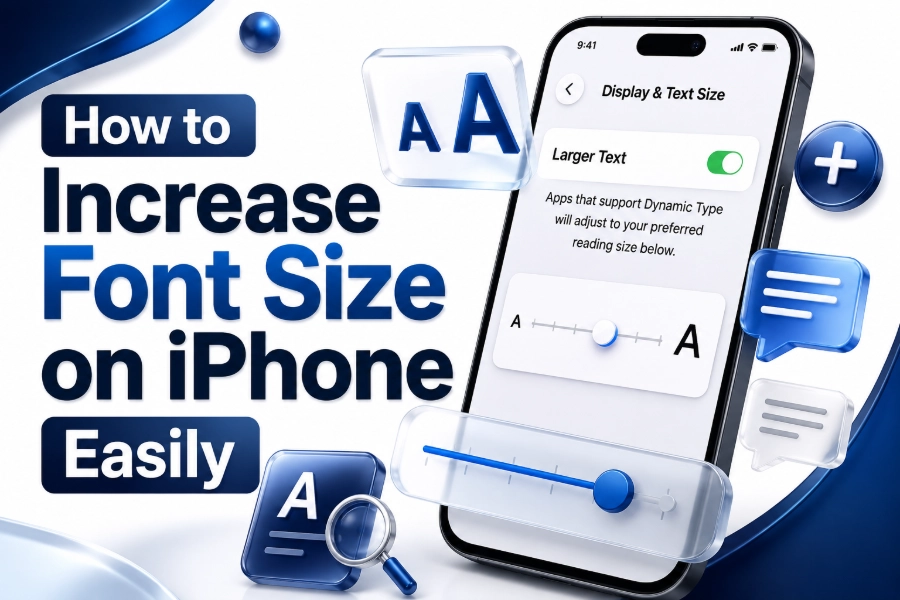
Learning how to increase font size on iPhone can make daily use much easier, especially when reading messages, emails, notes, websites, and settings. Apple gives users several built-in options to make text clearer without installing any extra app.
The iPhone font size system is mainly controlled through Display & Brightness and Accessibility settings. These areas let you adjust normal text size, enable larger accessibility text, bold the text, and improve contrast for better readability.
Most changes work across Apple apps and many third-party apps that support Dynamic Type. That means one setting can improve text in Messages, Mail, Calendar, Notes, Contacts, and other supported apps without changing each app manually.
Standard Text Size Adjustment on iPhone
The easiest way to increase font size is through the Text Size slider inside Display & Brightness. This option is ideal for users who want slightly larger text across supported apps without making the entire screen feel oversized.
Open the Settings app, tap Display & Brightness, and choose Text Size. Move the slider to the right to make text larger, or move it left if the text becomes too big for comfortable use.
This method is best for everyday users because it keeps the iPhone layout balanced. Buttons, icons, and menus usually remain easy to manage while supported app text becomes more readable and comfortable.
- Go to Settings
- Tap Display & Brightness
- Select Text Size
- Drag the slider to the right
- Open Messages, Mail, or Notes to check the result
Larger Text Settings for More Visibility
If the standard slider is not enough, the Accessibility menu gives stronger text-size options. This is useful for people who need noticeably larger text due to eye strain, ageing vision, or reading difficulty on smaller screens.
Go to Settings, tap Accessibility, choose Display & Text Size, then open Larger Text. Turn on Larger Accessibility Sizes if you want access to the biggest text options available on your iPhone.
After enabling larger sizes, drag the slider until the preview feels comfortable. Avoid choosing the maximum size immediately, because very large text can make some buttons, menus, or app layouts harder to use.
Bold Text for Easier Reading
Bold Text does not technically increase font size, but it makes letters thicker and easier to recognise. This can help users who struggle with thin text, low contrast, or bright screens during long reading sessions.
You can enable Bold Text from Settings, then Display & Brightness, or from Accessibility under Display & Text Size. Once enabled, system text becomes heavier across many parts of the iPhone interface.
Bold Text works well with a moderate font-size increase. Instead of pushing the text slider too far, try combining slightly larger text with bold styling for a cleaner and more balanced reading experience.
Recommended readability combination
| Setting | Best Use |
| Text Size | General font increase |
| Larger Text | Stronger accessibility sizing |
| Bold Text | Thicker, clearer letters |
| Display Zoom | Larger icons and interface |
| Increase Contrast | Better text separation |
Display Zoom for Larger Screen Elements
Display Zoom is different from font size because it enlarges more than text. It can make app icons, buttons, menus, and other interface elements appear larger, which helps users who want the whole screen to feel easier to touch.
You can find Display Zoom inside Display & Brightness. Depending on your iPhone model and iOS version, you may see options such as Default, Larger Text, or a zoomed display setting.
This option is helpful when text size alone does not solve the problem. However, it may reduce the amount of content visible on the screen, so it is best for users who prefer comfort over screen space.
Control Centre Text Size Shortcut
The Control Centre can include a Text Size shortcut, which makes font changes faster. This is useful when you want larger text in one app, but do not want to permanently change text size everywhere.
Open Settings, go to Control Centre, and add the Text Size control if it is not already included. Then open any supported app and access Control Centre to adjust text size from there.
On many iPhones, this shortcut lets you choose whether the change applies to all apps or only the current app. This gives you more control when one app feels too small but others look fine.
- Add Text Size to Control Centre
- Open the app you want to adjust
- Swipe into Control Centre
- Tap the Text Size icon
- Choose app-only or all-app adjustment when available
App-Specific Font Size Changes
Some users only need larger text in one app, such as Messages, Mail, WhatsApp, or Notes. App-specific text size changes help solve this without making every other part of the iPhone too large.
The Text Size shortcut in Control Centre is the easiest way to manage this. Open the app first, then adjust the text size and choose the app-only setting if your iPhone shows that option.
This feature is useful for balancing readability and design. You might prefer large text in reading-heavy apps, while keeping smaller text in social apps, photo apps, or productivity tools.
Font Size Changes in Safari
Safari has its own reading and zoom tools that can make websites easier to read. These tools are helpful because not every website follows iPhone text-size settings in the same way.
When using Safari, you can adjust website zoom from the address bar controls. Reader View, when available, also removes clutter and gives a cleaner page layout with more comfortable text.
For more font-related guides, you can explore our article on how to change font on iPhone. It can help users understand more iPhone text customisation options.
Message and Mail Text Readability
Messages and Mail usually respond well to iPhone text-size settings. Increasing text size can make conversations, email previews, sender names, and message content easier to read throughout the day.
If text still feels difficult, try Bold Text and Increase Contrast together. This can improve readability without making messages extremely large or forcing too much scrolling inside long conversations.
For email users, larger text can reduce mistakes when reading small details like dates, names, addresses, and instructions. It is especially useful for business communication and long-form email reading.
Best settings for Messages and Mail
| Need | Suggested Setting |
| Slightly bigger text | Text Size slider |
| Stronger text increase | Larger Text |
| Clearer sender names | Bold Text |
| Better visibility | Increase Contrast |
| Larger interface | Display Zoom |
Notes and Calendar Font Improvements
Notes is one of the most useful apps to improve with larger text. Many people use Notes for shopping lists, ideas, passwords hints, reminders, and work details, so clear text can save time.
Calendar also becomes easier to manage when text is more readable. Event titles, dates, times, and alerts can be checked faster when the font size matches your comfort level.
If you write long notes, avoid using the largest text size unless necessary. A medium-large setting usually gives a better balance between readability and the amount of content visible on screen.
Accessibility Options for Better Reading
Accessibility settings include more than Larger Text. You can also use Bold Text, Increase Contrast, Reduce Transparency, Button Shapes, and other visual options that make the screen easier to understand.
These settings are especially useful when bigger text alone does not fully solve readability problems. Better contrast and stronger text weight can improve comfort without forcing every word to become oversized.
The best approach is to adjust one setting at a time. Test each change in the apps you use most, then keep the settings that make reading easier without making navigation confusing.
- Larger Text improves font size
- Bold Text makes letters thicker
- Increase Contrast improves separation
- Reduce Transparency makes backgrounds clearer
- Button Shapes helps identify clickable areas
Avoiding Text That Becomes Too Large
Very large text may sound helpful, but it can create problems inside some apps. Buttons may become harder to tap, menus may feel crowded, and important information may require extra scrolling.
If your iPhone becomes difficult to navigate after increasing text size, return to Settings and reduce the slider slightly. A smaller adjustment can often deliver better readability without affecting usability.
The goal is not to choose the biggest text size possible. The goal is to find a comfortable setting that supports reading, typing, tapping, and browsing without slowing down your normal iPhone use.
Fixing Apps That Do Not Change Text Size
Some apps do not fully support iPhone Dynamic Type settings. In these cases, increasing the system font size may not change every part of the app, especially custom menus or fixed design elements.
Check the app’s own settings menu if the text remains small. Many reading, messaging, browser, and social media apps include their own display, chat, accessibility, or appearance settings.
If an app still looks too small, try Display Zoom or Safari zoom if you are using a web version. You can also update the app, because newer versions may support better accessibility behaviour.
Best Font Size for Older iPhone Users
Older iPhone users often benefit from a medium-to-large text setting rather than the largest available option. This keeps text readable while preventing menus from becoming too crowded or difficult to control.
A good setup usually includes larger text, Bold Text, and slightly higher contrast. These changes can make everyday tasks like calling, texting, checking reminders, and reading alerts much easier.
Family members can also help by setting up the Control Centre Text Size shortcut. This lets the user make quick adjustments later without searching through the full Settings app again.
Suggested setup for older users
| Feature | Suggested Choice |
| Text Size | Medium-large |
| Larger Accessibility Sizes | On if needed |
| Bold Text | On |
| Display Zoom | On if icons feel small |
| Control Centre Text Size | Added |
Font Size for Reading Websites and Articles
Reading websites on iPhone can feel uncomfortable when pages use small fonts, narrow spacing, or crowded layouts. Increasing iPhone text size may help some websites, but Safari tools often work better.
Use Safari’s page controls to increase website zoom or switch to Reader View when available. Reader View can make articles cleaner by removing unnecessary side elements, popups, and distracting page sections.
You may also enjoy reading what font does Apple use to understand why Apple focuses heavily on legibility, spacing, and clean screen typography across its devices.
Font Size and Battery Life
Increasing font size does not usually create a major battery issue. Font size mainly changes how text appears, not how hard the iPhone processor or battery must work during normal use.
However, related settings can affect battery life indirectly. For example, brighter screens, longer screen time, and high display brightness can drain battery faster than a simple text-size adjustment.
If you increase text size for comfort, also adjust brightness, Auto-Lock, and dark mode preferences. These settings can make reading easier while helping your iPhone battery last longer throughout the day.
Common Mistakes When Increasing iPhone Font Size
One common mistake is using Display Zoom when only text needs to be larger. Display Zoom changes more of the screen, so it may feel too strong for users who only want bigger words.
Another mistake is choosing the maximum accessibility size without testing. Extremely large text can make apps harder to use, especially when buttons, tabs, or form fields do not resize cleanly.
A better method is to start with the normal Text Size slider, then add Bold Text, then try Larger Text if needed. This gives you more control and prevents sudden layout problems.
- Start with the normal Text Size slider
- Add Bold Text before using maximum sizes
- Test changes in Messages, Mail, Notes, and Safari
- Avoid maximum size unless truly needed
- Use app-specific settings for better balance
Troubleshooting Oversized iPhone Text
If your iPhone text becomes too large, go back to Settings and reduce the Text Size slider. If navigation is difficult, use Siri to open Settings or ask someone to help access Accessibility.
If the entire screen looks zoomed in, the issue may be Zoom rather than font size. In that case, check Settings, Accessibility, and Zoom, then turn it off if it was enabled accidentally.
You can also restart your iPhone after changing display settings. A restart is not always necessary, but it can help apps refresh their layouts and apply text-size changes more smoothly.
Conclusion
Changing iPhone text size is one of the easiest ways to make your device more comfortable. You can use Text Size, Larger Text, Bold Text, Display Zoom, and app-specific controls to improve readability.
The best setting depends on your eyes, screen size, apps, and reading habits. Start with small changes, test your favourite apps, and adjust gradually until the screen feels natural.
Now you know how to increase font size on iPhone in several practical ways. With the right settings, messages, emails, notes, websites, and menus can become clearer without making your phone difficult to use.